Simple Troubleshooting
Resolve Configuration Problems
Most configuration or setup problems encountered while using Calibration Control (our Calibration Management Software) can be isolated with the following troubleshooting steps. Do you need to upgrade your installed version of the application? Did you just upgrade the application? Did you connect to the wrong database?
Check the Version
Confirm what version you are using, and upgrade to the most current version if you have a lower version: Download Instructions for Ape Software
If you are not using the most current version, it is very possible something related to this issue has already been fixed with a more recent release; always review the Version History.
Reset Configuration
Refer to Network Configuration Reset.
Try to reset the configuration and rename or delete the existing general.config file.
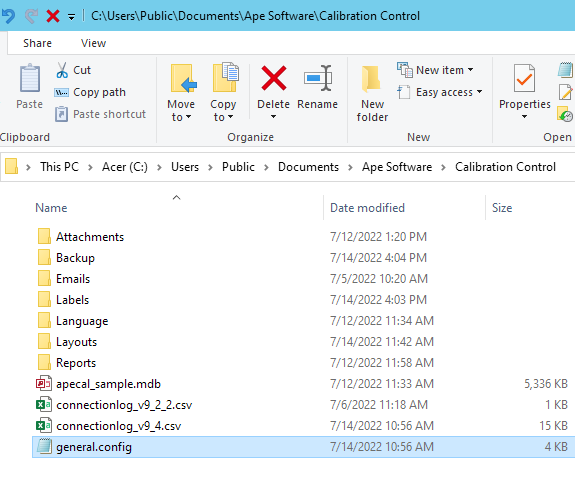
When you open the Calibration Control application you get a fresh start to choose the database format again. If you want to use Sample Data, refer to the Reset Config for Sample Data.
Isolating your Database Path
If a blank or sample Access Database file is still located in the Settings Folder (which is is also the default location for the Data Folder), then Calibration Control will always automatically connect to that available database again in the default location, (i.e., "apecal.mdb"). If it is a BLANK or empty database, or you are seeing old/wrong data, see more specific help tips in Troubleshooting Database Location!
- Open Calibration Control if you can. Click File and select "Open Data Folder" from the menu. When it opens, you can close the Calibration Control application.
- Next, rename the incorrect existing database file, (i.e., rename to 'apecal_[DATE].mdb').
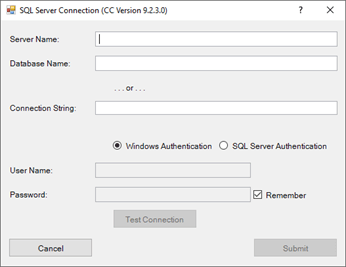
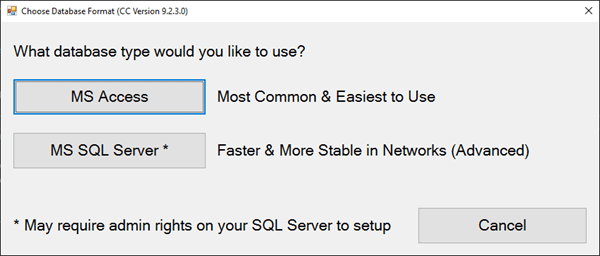
- Restart the application, and when the Start Up dialog below appears, select options to to create a New MS Access Sample Database. This means Calibration Control auto-creates a new database copy in the default Data folder.
- If the problem continues to occur even when using a new sample Access database, contact Ape Software for assistance. If the problem is resolved when using a new sample database, then please zip your '_apecal.mdb' file (your database) and the 'errorlog.html' files. Email these files to service@apesoftware.com with a description of what you are experiencing.
Steps Recorder
Record your steps and reproduce the problem so Ape Software can replicate it and troubleshoot! Try to utilize the built-in Steps Recorder feature from the Calibration Control ribbon menu's Utilities tab.
⮩ Use the Problem Steps Recorder settings to record and save what you are doing to result in an error or issue, and then email us your captured steps so that Ape Software can assist. With your recorded captures, please include as much additional information as possible:
- Description of what you are doing that leads to the issue you are trying to communicate. Include as many details as you can (and any relevant screenshots from within the application). Include the Calibration Control version you currently have installed.
- Problem Steps Record File (see above), if possible (file has an *.mht extension)
- The 'errorlog.html' file from the Settings folder
- The 'general.config' file from the Settings folder
- The 'apecal.mdb' file from the Data folder
- To reduce file size, zip these files into a compressed file/folder if possible

Last Updated: 08 November 2023