Access All the Label Fields
Understanding Labels Fields in Calibration Control
Review these guidelines to get the most out of printing labels with Calibration Control (our Calibration Management Software).
Need to Know Basics: Overview List
- Printing Labels demo: Watch a label quick start video for an introduction to the basics of label printing within Calibration Control.
- Files Folder (Label Templates): Available label templates for Calibration Control store in the Labels folder of the Files Folder. Watch a help video about the Calibration Control Folders.
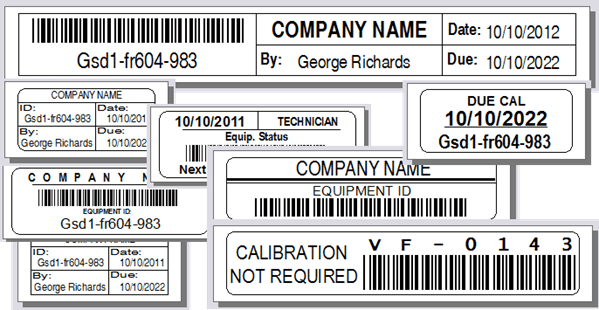
- Available Label Templates (Previews): Refer to image captions for correct .lbx file names of the stock sample templates included with Calibration Control:
- All templates are customizable; these sample previews may help you determine a default label template (.lbx file) for selecting your Default Label Options, or to customize yourself with the available data fields listed at the bottom.
Label Templates Naming Requirements must meet requirements for successful software recognition and printing compatibility:
- The .lbx file name sequence starts with the label size of the tape width in millimeter (mm) ONLY, followed by a hyphen,
- Next, the type of label requires its specific keyword (file naming conventions are described below), followed by a hyphen,
- The end of the file name is an identifier (e.g., next increment, characters, or combination mask)
- The equipment Asset tags must use 'Asset' for the label file name, (e.g., 24-Asset-05).
- The next Calibration labels must use 'DueCal' for the file name, (e.g. 18-DueCal-02). (*CNR frequency exempt)
- Creating a Maintenance label must have 'DueMaint' for the file name, (e.g. 24-DueMaint-01).
- The custom label for a grouped equipment System must have 'System' for the file name, (e.g. 36-System-08).
- *Calibration Not Required (CNR) or Next Use as calibration frequencies require the specific Cal Label file naming conventions:
- Due Cal Labels for Calibration Not Required Frequency must have 'CNR' for the label file name, (e.g. 12-CNR-04).
- Equipment with a Next Use Cal Frequency also use 'CNR' in the label file name in current version 9, (e.g. 18-CNR-09). In older version 8, use 'NextUse' in the file name, (e.g. 24-NextUse-03).
Customized Templates with Label Fields
Asset Label Fields
- AlternateID
- BarcodeId
- CalibrationDue
- CalibrationLast
- CertificateNumber
- CheckedOutBy
- CheckOutDate
- CurrentUserFirstName
- CurrentUserLastName
- CurrentUserFullName
- CurrentUserName
- Custodian
- Department
- DepartmentCode
- EquipmentCalCo
- EquipmentCost
- EquipmentID
- EquipmentStatus
- EquipmentStatusCode
- Frequency
- FrequencyDescription
- FrequencyGuid
- FrequencyUnits
- IsStandard
- Location
- LocationCode (or LShort)
- Manufacturer
- MasterGuid
- ModelDesc
- ModelNumber
- MyCompany
- Notes (equipment)
- Owner
- SerialNumber
- SizeRange
- StatusCode
- StatusCodeDescription
- TechnicianEquipment
- TypeCode
- TypeName
Due Cal Label Fields
- AlternateID
- AsFoundName
- BarcodeId
- CalibrationCalCo
- CalibrationCost
- CalibrationDue
- CalibrationLast
- CalibrationStatus
- CalibrationStatusName
- CertificateNumber (equipment)
- CertificateEvent (calibration)
- CheckedOutBy
- CheckOutDate
- Cost (equip with cal history)
- Custodian
- Department
- DepartmentCode
- EquipmentCalCo
- EquipmentCost (no cal history)
- EquipmentID
- Frequency
- FrequencyDescription
- FrequencyGuid
- FrequencyUnits
- Humidity
- IsStandard
- Location
- LCode (location short)
- Manufacturer
- MasterGuid
- MasterIdBarcode
- ModelDesc
- ModelNumber
- Notes (equipment)
- Owner
- Remarks (calibration)
- SerialNumber
- SizeRange
- StatusCode (short)
- StatusCodeDescription
- TechnicianCalibration
- TechnicianEquipment
- Temperature
- TemperatureUnits
- TypeCode
- TypeName
Maintenance Label Fields
- AlternateID
- ApprovedDate
- AsFound
- AsLeft
- BarcodeId
- CheckedOutBy
- CertificateNumber
- CheckOutDate
- Custodian
- Department
- DepartmentCode
- EquipmentCost
- EquipmentID
- EquipmentMaintCo
- EventCost
- EventDate
- EventName
- EventNumber
- EventPerson
- FreqGuidMaint
- Frequency
- FrequencyCode
- FrequencyUnits
- Humidity
- IsStandard
- LastDueDate
- LCode
- Location
- MaintLast
- MaintNext
- Manufacturer
- MasterGuid
- ModelDesc
- ModelNumber
- Notes_Equip
- Notes_Event
- Owner
- Received
- SerialNumber
- SizeRange
- StatusCode
- StatusCodeDescription
- TechnicianEquipment
- Temperature
- TemperatureUnits
- TypeCode
- TypeName
System Label Fields
- BarcodeId
- CalibrationDue
- CertificateNumber
- Custodian
- Department
- DepartmentCode
- Location
- LCode
- Owner
- PersonalProperty
- SiteName
- Standard
- StatusCode
- StatusCodeDescription
- SystemName
- SystemCode
- Technician
- Boolean0 (all custom boolean fields 0-9)
- Character0 (all custom character fields 0-9)
- Date0 (all custom date fields 0-9)
- Number0 (all custom number fields 0-9)