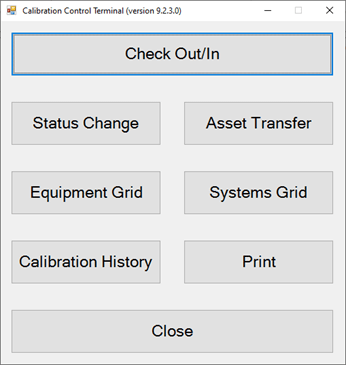
Move Application Database
Move Application Database to a New Location
Follow the steps below to move an application database file (apecal.mdb) in Calibration Control (our Calibration Management Software) from its initial location, to a new location to make the database easier to backup or to place it in a more central location to share with additional users.
STEP 2: Find Database File
Before moving the ‘apecal.mdb’ file, verify its current location path.
Refer to the help page on finding the database .
↪ For even more tips, refer to the Troubleshooting DB Location help page describing the Connection Log and how to reset your current configuration!
STEP 2: Close Application
Before moving the database file, please first ensure the application is closed.
STEP 3: Move Database File
Choose a new folder location (on a shared network or the same computer) and move the ‘apecal.mdb’ file from its original location to the new location.
Note 1: If moving the database file to a network location, grant the appropriate user permissions for that new location depending on who needs read/write ability.
Note 2: If creating a copy of the database to a different location, rename the original file or create and move the DB backup from the first location. The goal is to ensure that the program does not mistakenly reconnect to an old database in the future, making users think their data is lost.
STEP 4: Point Application to New Location
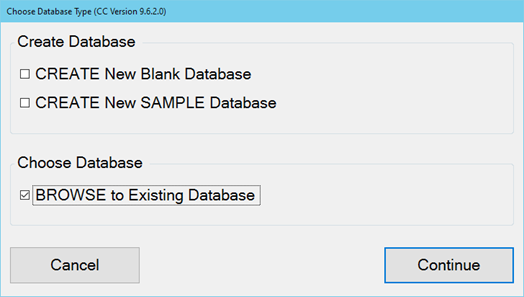
Point the Ape Application to the new location by restarting the application. When the application discovers the ‘apecal.mdb’ file is missing from its known location, it will show the following ‘Choose Database Type’ dialog:
From within this dialog, select ‘BROWSE to Existing Database’ and click the [Continue] button.
Browse to and select the new database location and click the [Open] button.
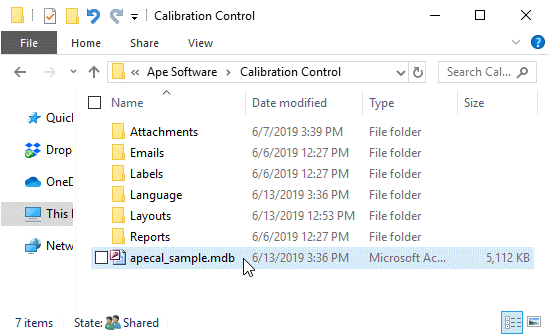
The Ape Database Software should start as normal and will remember this new location.
The YouTube video link below shows how to use this feature in an older version of Calibration Control. While the software appearance may differ, the how-to concept remains true for moving your database file as demonstrated in the video.