Creating a Multi-User Environment
Set up Multiple Users and/or Install New PCs
Setting up shared access for multiple users to use Calibration Control (our Calibration Management Software ) can be as easy as changing your machine's configuration for the software, choosing a database type, and then pointing Calibration Control to the correct database. Watch a video available at the bottom. These steps may require resetting your configuration.
Database Type: MS Access or SQL Server
- If you are using an MS Access database file, you should be familiar with both: (1) Locating and (2) Moving your true 'apecal' database.
- If you are using a SQL Server database, please refer the following help files: (1) Installing DB on SQL Server and (2) Connecting to SQL Server DB.
Shared Folder: Read/Write Permissions
Most of the difficulties users experience with implementing a multi-user environment are strictly related to network folder permissions... Therefore, if you experience difficulties, first seek assistance from your network administrator. Please refer to our Minimum Requirements for the read-write permissions needed by all users.
Along with the database, remember to set up a Common Files Folder on a shared network location where all users are granted equal read-write access.
Create the Common Files Folder (both Access & SQL)
Share access to attached files and all of the templates that Calibration Control uses. The Files Folder is comprised of four folders: Attachments, Emails, Reports, and Labels. To set up a Common Files Folder path, the shared Files Folder location stores these four files folders, and the folder path must be configured in the Folder Path Options of the software. Ensure each networked user has read/write access to these folders.
Set up a Common Files Folder by:
- Common Mapping: Ensure each user has the same mapping for the Files Folder. For instance, if a mapped drive is used for one user, (e.g., "M:\Server2\Common Files"), the same absolute file path will be used for all users.
-
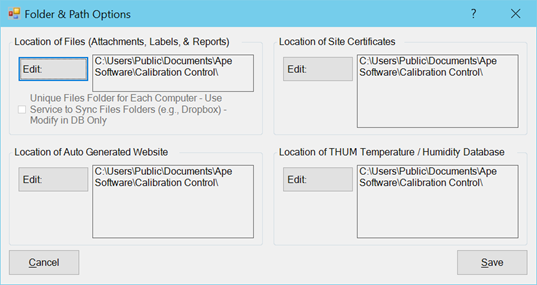
Point Ape Database Software: Edit the current 'Location
of Files' path in
Options / Advanced / Folder & Path.
⮩ When browsing, simply select the folder that contains all four of the Files Folders (Attachments, Emails, Labels, Reports).
⮩ (Note: It is possible to allow UNC paths. Contact Ape for assistance.)
- Prevent Missing Files! Move Existing Content: Ensure all Attachments and custom templates (e.g., reports, labels, & emails) are placed in the new common Files Folder. Double-check previous Files Folder paths for custom content and manually move the items to the destined common Files Folder location. Verify the local Settings Folder location for old Files Folder content. Other than Attachments files, stock Reports and Label templates can restore by default in the new common Files Folder location.
Adding New Seats or Additional Users
Depending on the chosen Authentication Method between Machines or Users (Sign-In Mode), adding seats may refer to simply installing the software on more clients, or creating additional Users with their own credentials to sign in to Calibration Control. Often, both scenarios are true, in which new users are installing on new machines.
Therefore, new machines and new users must simply connect to the correct, true database. Launching the program after new installation presents a dialog to choose between database types of MS Access or SQL Server.
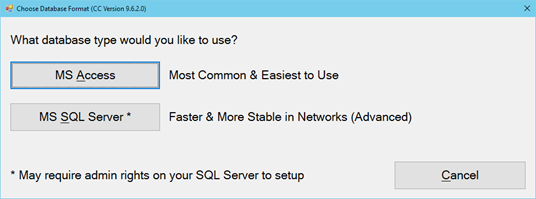
SQL Server:
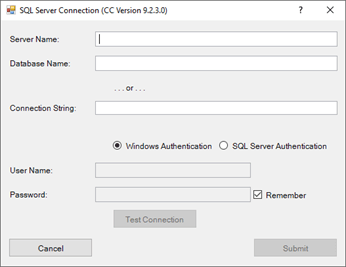
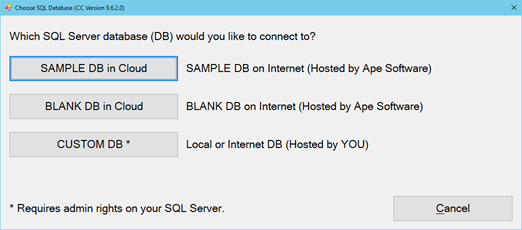
If you use SQL Server, the following dialog is to choose between the Sample or Blank (cloud-hosted) database, or a Custom database. If your own organization hosts/manages your SQL Server database, select the 'Custom DB' option. The next step will be to identify your SQL Server database credentials or connection string. Refer to troubleshooting connection to SQL Server help topic if you experience problems connecting from a new machine.
MS Access:
If you use MS Access (a database file), the software next presents a dialog with option to either create a new database (blank or with sample records), or to browse and navigate to an existing database location. If a database already exists and can be found in a network location, then select the 'BROWSE to Existing Database' checkbox and click [Continue] .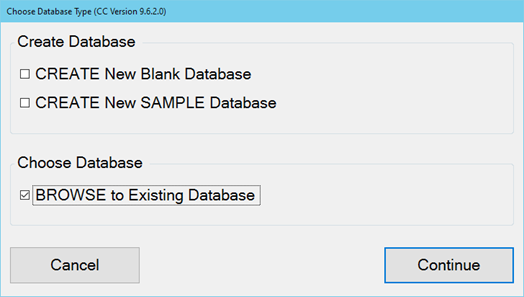
When a blank or sample database is auto-connecting, refer to troubleshooting location of Access database for how-to help tips.
► Watch a video for doing this in Calibration Control. While the software appearance may differ from the current version, the concept remains true to set up a multi-user environment.