Connect to SQL Server Database
Configure Calibration Control to Connect to SQL Server
After creating the Calibration Control database on your SQL Server, follow these instructions to connect Calibration Control (our Calibration Management Software) to your SQL Server database.
Select Database Format
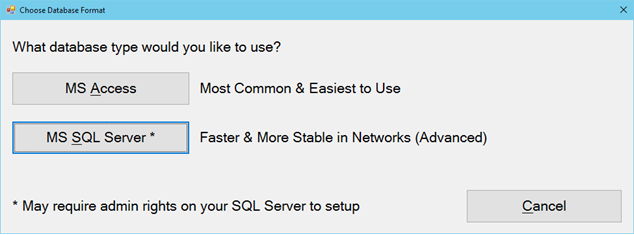
Start Calibration Control. When running Calibration Control for the first time, select MS SQL Server type of DB format.
Choose SQL Database
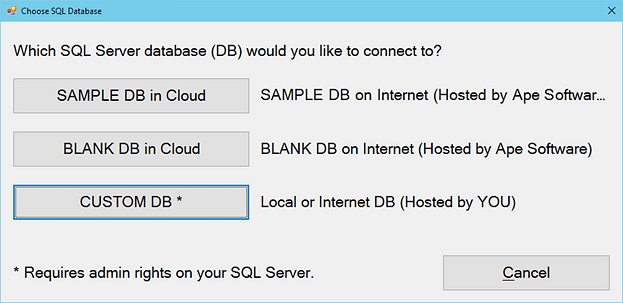
Ape Software hosts a Sample && Blank internet-based SQL Server database that you can connect to in trial mode, or anytime. (Refer to SQL Cloud-Hosting for more information.)
To connect to your SQL Server database, select the Custom DB option.
Entering SQL Credentials
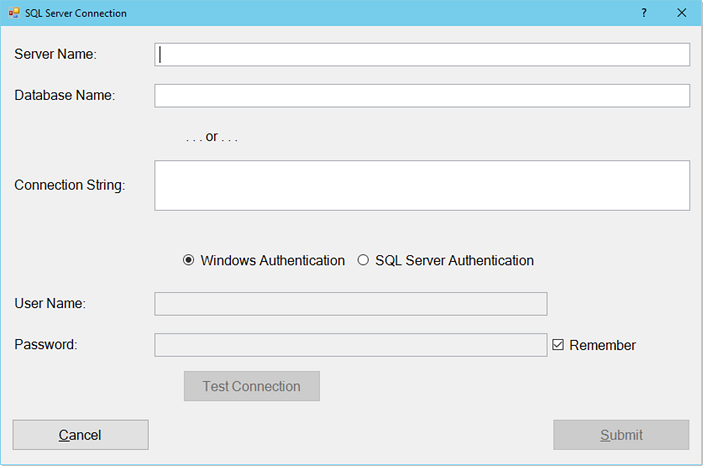
In the SQL Server Connection dialog, enter the fully qualified name into the Server Name field, Database Name, and select the Authentication Method.
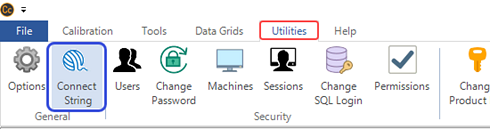
Alternatively, you can use an existing Connection String. If you have a successful SQL connection from another machine with Calibration Control, go to the Utilities tab on ribbon menu and copy the Connection String. Copy/paste that into the Connection String field of this dialog to then quickly test connection.
In the SQL Server Connection dialog, the Remember (Login) box is automatically checkmarked to skip this step next time. If left unchecked, you will be required to verify your server authentication again.
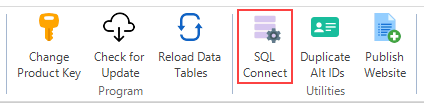
If you are already in an open session of Calibration Control (connected to any database, regardless of format type), you can easily establish a new server connection within the software application just by clicking SQL Connect from the Utilities tab of the ribbon menu.
Test SQL Server Connections
Reset Configuration Settings
The database connection process creates a configuration file in the local Settings folder on each computer where the application is running. It's easy to reset if a mistake is made in the start-up "Choose Database Type" process. To fix it, delete the config file.
(Version 9.0 to 9.6.1) You can do this in v9.0 to v9.6.1 by holding down your [CTRL] key at the same time as double-clicking on the application icon to start Calibration Control. It may require two attempts.
(Version 9.6.2) You can do this in v9.6.2 by holding down your [CTRL] + [ALT] keys at the same time as opening the program application.
(Version 9.7 +) You can do this in v9.7+ by holding down your [CTRL] + [CAPS] keys, now required to re-create the General.Config file.
(MANUALLY): You can do this in all versions by manually navigating over to the Settings Folder path where the local general.config file resides, and delete it; then open the application again. The Settings folder is always located at this local folder path of the machine:
C:\Users\Public\Documents\Ape Software\Calibration Control
* After resetting configuration, re-open the Calibration Control application and the initial start-up dialog will appear so that you can re-select the database type (SQL Server or MS Access) and database connection, (i.e., SQL credentials, or choose to browse to existing database).
Last Updated: 20 August 2024