SQL SELECT Statement
Useful with Calibration Management Software Reports
SQL (pronounced sequel) stands for Structured Query Language. SQL is the basic language of most common databases, including MS Access and MS SQL Server, the two databases that Calibration Control can use. For the purpose of report writing, the part of the SQL language we need to focus on is the SELECT statement, which retrieves information from Calibration Control (our Calibration Management Software). Although SELECT statements are used by reports, web pages, on screen displays, and even when moving data between applications, we will need SQL primarily for reports.
A Primer on Tables
Before we get started, let’s make sure we understand the source of our data when we use a SELECT statement. Within a database, information is stored in tables that look something like a spreadsheet with columns and rows. Unlike a spreadsheet, a table uses records (horizontal rows) and fields (vertical columns).
Imagine each record in the database as a photocopied standard form used for keeping track of test equipment and imagine that these forms are kept in a file. The file may have a hundred forms, each with information describing a specific piece of test equipment. Just like a table, these forms can be sorted in different orders and records can be scanned by a single field on each form; it just takes a bit longer with paper compared to a database table.
The Equipment Master View
Within Calibration Control, you will probably derive most of your reports from the qryEquipment view (also called a query) because it has most of the required fields for your test equipment records. The fields in the view will also be easier to read than their corresponding codes in the root table. Think of a view as a way to pre-package part of the SQL complexity that makes data easier to work with.
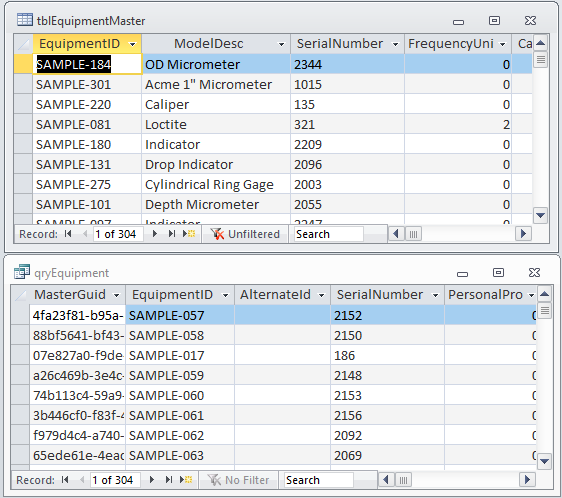
As an example, the contents of the tblEquipmentMaster table (where the data is actually stored) contain fields like ModelNumberID with meaningless numbers in the fields (see image below). On the other hand, look at the qryEquipment and you will see the actual model numbers and descriptions that look familiar. This is because the view has SQL code in it that looks up and displays the meaning of the ModelID code so you don’t need to.
The SQL SELECT Statement
There are four main parts of the SELECT statement that we need to cover:
- SELECT – (IDs the fields from a table that will be included)
- FROM – (IDs the table where the fields come from)
- WHERE – (Defines the filter that includes only the records you want to include)
- ORDER BY – (Defines the sort order of the records)
While the SELECT and FROM clauses are always required, only the WHERE and ORDER BY clauses need to be included when filtering and sorting. Otherwise, the results will include all records and in no particular order other than the physical order of the underlying table.
Here is an example of a common SQL statement used to return all the fields from the qryEquipment view:
SELECT *
FROM qryEquipment;
Pretty easy, right? Notice the asterisk (*)? The asterisk is a wildcard that includes all fields. With the relatively easy SELECT statements that we need in our Calibration Management Software, using the wildcard is usually the best bet because you don’t need to worry about forgetting a field when designing the report.
Now let’s assume that we want to filter and sort our results in the following example:
SELECT *
FROM qryEquipment
WHERE DepartmentCode = 'QA'
ORDER BY Location;
You can even add multiple filters and multiple sorts with the following MS Access:
SELECT *
FROM qryEquipment
WHERE (DepartmentCode = 'QA') AND (CalibrationDue <  #5/1/2019#)
ORDER BY Location DESC, SerialNumber;
Note that the date value has number signs (#) around it rather than the single quotes of the text values? You need to use the # sign when using MS Access and the single quote (‘) when using SQL Server. Although both databases use SQL Server, there are still slight differences.
Here's the same code for MS SQL Server:
SELECT *
FROM qryEquipment
WHERE (DepartmentCode = 'QA') AND (CalibrationDue <  '5/1/2019')
ORDER BY Location DESC, SerialNumber;
The final example deals with filtering for numeric values and is compliant with both MS Access and MS SQL Server. Note that the value (1) uses neither the single quote (‘) or the number sign (#)?
SELECT *
FROM qryEquipment
WHERE FrequencyUnits = 1;
You can learn more about the SQL SELECT statement through an Internet search or go directly to Microsoft for SQL Server SELECT Statements or MS Access SELECT Statements .
Last Updated: 13 August 2019