Upgrading from 5.4 to Current Version
Instructions for Upgrading from a Previous Calibration Control
Follow these instructions to ensure a clean migration from a previous version of Calibration Control (our Calibration Management Software) 5.x to the most current version. Unlike 5.4 and earlier, 5.5 and later store program, data, and settings files using a method compliant with Windows Vista and 7 in addition to XP.
Step 1: Backup Your Data
Be safe and backup your data just in case something goes wrong. See the help page on backing up a database file before continuing with this help topic.
Step 2: Uninstall Previous Versions
Although the current version should automatically uninstall previous versions, uninstalling the current version first will ensure this is true. The data file (apecal.mdb) or data stored on SQL Server will not be affected.
Step 3: New Product Key
You will need a new product key but the current version will be fully functional for the 30-day trial period.
Step 4: Download and Install
Whether you have a new product key or not, you can still download the newest version of Calibration Control (sign-in required) and it will remain fully functional for 30 days. Be sure to follow the instructions on the download page relating to the Microsoft prerequisites. The current version will not erase any of your data but it should uninstall the previous version automatically.
Step 5: Using Your Existing Database
The current version can import the 4.x data and upgrade the 5.x database to the current structure. Move the current database to a new location or tell Calibration Control where the current data resides (e.g., network server).
If maintaining the database file in a central location, like a network server, or when using a SQL Server, start Calibration Control and follow the prompts for connecting to the existing database. Otherwise, Calibration Control should be able to find the previous databases. If it cannot, it will prompt the [Choose Database Type] dialog.
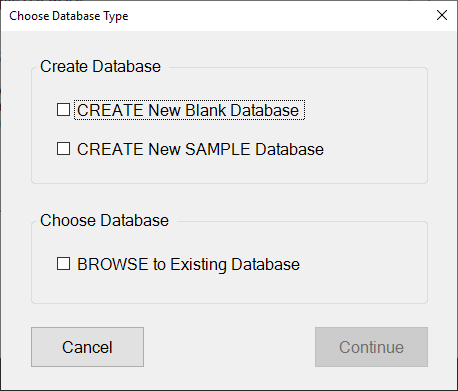
If Calibration Control needs help finding the database, find the current database file (apecal.mdb) and move it to the new default data folder in one of these two locations, depending on your operating system:
-
Windows XP
C:\Documents and Settings\All Users\Documents\Ape Software\Calibration Control\ -
Windows Vista and 7
C:\Users\Public\Documents\Ape Software\Calibration Control\
Start Calibration Control and it should find the database.
Final Step: Removing Extra Files
After the new copy of Calibration Control is up and running, you may want to clean up your hard drive by removing any remaining settings files left behind by the previous versions. Find these files in one or both of the following folders:
- In Windows XP systems, Calibration Control stored the program, settings, and data files all in the same folder located at: C:\Program Files\Ape Software\CCV5. You can delete this folder and everything in it after moving your apecal.mdb database file.
- In Windows Vista and 7 systems, Calibration Control stored the program files in the same folder as the XP systems (above) but stored the settings and data files in the folder identified in our Locate Your Database help topic. You can delete this folder and everything in it after moving your apecal.mdb database file.
Last Updated: 10 July 2019